Containers and Replicas
Quave ONE uses two labels for the same scaling concept depending on the environment type:
- Apps use Containers.
- Databases & Services use Replicas.
You can adjust the number of containers for an app, or replicas for a database, on the environment page. Use the controls in the header:

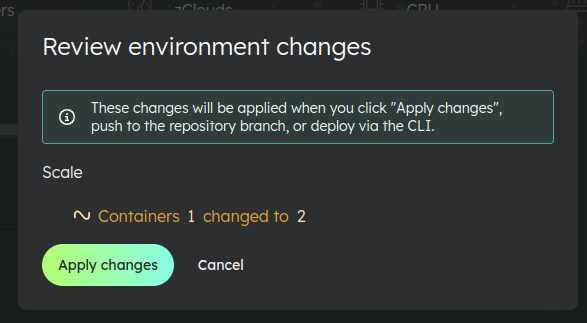
Be sure to apply changes after adjusting the number to scale your app or database:
High Availability
Check if High Availability (HA) is active for your environment beneath the container or replica control:
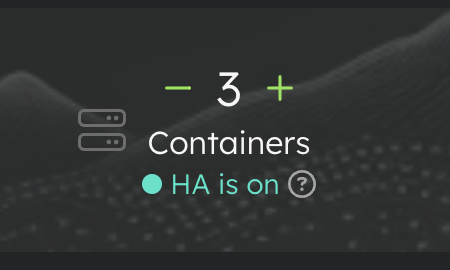
HA is active when you're running three or more containers or replicas. This guarantees your app or database runs on separate physical machines to minimize disruption from potential machine, container, or replica failures.
Note: The HA status UI indicator considers your current configuration, even when it's not applied yet. This means that if you have 2 containers or replicas and you're trying to add a third one, your High Availability status will be achieved in fact when you apply the changes.
Terminate a Container or Replica
You can manually terminate individual running instances from the environment details page. Apps show these instances in the Containers tab, and databases show them in the Replicas tab. Each running instance displays a "Terminate now" action that allows you to restart that specific instance.
For apps:
- Go to Apps.
- Open the app and environment.
- Click the Containers tab.
- Click Actions for the running container.
- Click Terminate now.
- Confirm the action.
For databases, including MongoDB:
- Go to Databases & Services.
- Open the database and environment.
- Click the Replicas tab.
- Identify the replica you want to restart. For MongoDB, use the Primary label when you specifically need to restart the primary.
- Click Actions for that running replica.
- Click Terminate now.
- Confirm the action.
Once confirmed:
- The selected container or replica is immediately terminated.
- A replacement starts automatically.
- You'll see a success notification confirming the action.
This feature is useful for:
- Troubleshooting: Force restart an instance that may be in a bad state but not failing health checks.
- Testing: Verify your application or database handles restarts gracefully.
- Resource refresh: Clear memory leaks or stale connections by cycling one instance.
Note: The "Terminate now" option only appears for containers or replicas that are currently in the "Running" status. Terminated or failed instances don't show this option.
Exec Terminal
For deeper debugging, you can open a browser-based terminal session directly into a running app container or database replica. This lets you inspect files, run commands, and diagnose issues without leaving the dashboard.
See Exec Terminal for details.
Container and Replica Distribution
Container and replica distribution is guided by affinity, meaning we distribute instances across different VMs and physical machines within the same region. This strategy improves fault tolerance and resilience for your applications and databases.
By spreading containers and replicas across multiple nodes, we ensure a robust hosting environment for critical workloads.