Storage
Ephemeral
Ephemeral storage is the default storage type for all app envs.
It's a temporary storage that does not persist between deploys.
Our default maximum ephemeral storage is 50 MB.
Although it's available in all containers, we don't recommend using it. It would be best to use a service to store files like AWS S3. If you have special needs, contact our support team.
If you want to use this storage, you can write to any folder in the container, but we recommend using the /tmp folder. If the storage reaches the limit, the container will be terminated, and a new one will be created.
Persistent Storage for Applications
You can mount a persistent volume at a configurable path inside your container. Unlike ephemeral storage, data in this volume survives across deploys.
How to Enable
- Open the app environment and select Settings → Storage
- Check Use Persistent Volume
- Enter a Volume path -- the mount point inside your container (e.g.,
/data,/rails/storage) - Apply changes
Volume configuration is per-environment, so each environment (e.g., production, staging) can have its own volume settings. This allows you to enable persistent storage only in the environments that need it, and to use different volume paths or storage types per environment.
Disk Size
Disk size is configured per environment in the App Env settings. The default allocation is 1000 MB (1 GB).
Note: Our default maximum disk size is 1000 MB (1 GB). Contact support if you need more storage.
Blue-Green Deploy Impact
Persistent volumes are automatically incompatible with blue-green deployments. When you enable persistent storage, blue-green deploy is automatically disabled. The UI will show a warning and disable the blue-green toggle.
This is because volumes cannot be shared across blue and green instances simultaneously.
Scaling Limitation
Environments with persistent volumes are limited to 1 container. Scaling to multiple containers is not allowed because the persistent disk is bound to a single node and cannot be shared across containers. Autoscaling is also not available for environments with persistent volumes.
When to Use
Persistent storage is useful for:
- SQLite databases or other file-based data stores
- File uploads that must persist across deploys
- Applications with local state that cannot be stored externally
For most file storage needs, we recommend using an external service like AWS S3 instead of persistent volumes. External storage scales better and works seamlessly with blue-green deployments.
Persistent-volume apps and managed databases can also be enrolled in account-wide Disaster Readiness so recoverable data is kept in another region.
API and MCP Access
You can configure persistent storage programmatically:
- App Env API -- use
useVolume,volumePath, anduseNfsVolumefields when updating an environment viaPUT /app-env, and use thediskfield to set disk size per environment - MCP tools -- use
update-app-env-volumeandupdate-app-env-resourcestools
Shared Storage (NFS Volumes)
Shared Storage gives your app a network volume (NFS-backed) that can be mounted by multiple containers at the same time and persists across deploys. It's the right choice when you need persistent files but also want to scale horizontally or use blue-green deploys.
Availability
Shared Storage is an opt-in capability that must be enabled on your account by our team.
- Contact support to enable Shared Storage on your account. Until it is enabled, Shared Storage in the main navigation and the Use Shared Volume checkbox under Environment Settings → Storage are hidden.
- Shared Storage is only available in regions that support persistent volumes. If your environment runs in a region without volume support, you will see a warning and the option will be disabled.
- The actual NFS storage server is provisioned by our team. Once Shared Storage is enabled for your account, you can create your own shared volumes on top of it.
How It Works
There are two concepts:
- Storage Server -- the backend a volume lives on, shown on Shared Storage → Storage Servers: an NFS server set up by our team, the region's Quave ONE object storage point, or (with object storage volumes) a bucket of your own that an account Admin connected. You only see the servers available to your account in each region.
- Shared Volume -- a named, sized volume created on a storage server. You create and manage these. An app environment mounts exactly one shared volume.
Each shared volume is region-scoped: it can only be used by environments running in the same region as its storage server.
Create a Shared Volume
- Open Shared Storage from the main navigation
- In Shared Volumes, click Add
- Pick the Storage Server (if more than one is available)
- Enter a Volume Name and a Size in Megabytes
- Click Create
The volume becomes available immediately for any app environment running in that storage server's region.
Use a Shared Volume in an App Environment
All volume configuration is done per-environment:
- Open the app environment and select Settings → Storage
- Check Use Persistent Volume
- Check Use Shared Volume (NFS or object storage)
- Enter the Volume path -- the mount point inside your container (e.g.,
/data,/rails/storage) - Select Settings → Advanced settings, then choose a volume from Shared Volume
- Save
A shared volume must be selected before deploying. If you enable shared storage but leave the volume unset on an environment, deploys for that environment will fail with a "Shared volume is enabled but no volume is selected" error.
Shared vs. Local Persistent Volumes
| Capability | Local Persistent Volume | Shared Storage (NFS) |
|---|---|---|
| Multiple containers | No (limited to 1) | Yes |
| Autoscaling | Not available | Available |
| Blue-Green deploy | Automatically disabled | Supported |
| Mount path lifecycle | Per-environment disk | Account-level volume |
| Public API / MCP | Supported | Create, list, remove, restore volumes; list Storage Servers; connect your own bucket |
If you need horizontal scaling, autoscaling, or blue-green with persistent files, use Shared Storage. If you need a single-container app with a simple local disk, the regular Persistent Storage is enough.
Backups
Shared volumes are not backed up automatically by Quave. You are responsible for backing up the data your app writes to the shared volume (for example, by running periodic exports to object storage like S3).
If you need managed backups for shared storage, contact support to discuss options.
Limits
- A volume can only be used by environments in the same region as its storage server.
- Volume size is set at creation in megabytes.
- An app environment mounts one shared volume at a time.
- Volumes and Storage Servers can also be managed through the Shared Volumes API:
POST /api/public/v1/shared-volume/create,GET /api/public/v1/shared-volumes,POST /api/public/v1/shared-volume/remove(withpurgeAfterDays),POST /api/public/v1/shared-volume/restore,GET /api/public/v1/storage-servers,POST /api/public/v1/storage-server/object-storage/createandPOST /api/public/v1/storage-server/object-storage/update. The matching MCP tools arecreate-shared-volume,list-shared-volumes,remove-shared-volume,restore-shared-volume,list-storage-servers,create-object-storage-serverandupdate-object-storage-server. See Removing a volume (delayed purge).
Object Storage Volumes (VolObj)
An object storage volume is a shared volume backed by an S3-compatible bucket instead of an NFS server. Every file is one object in the bucket, at the same path, so you can read (and back up) the volume with any S3 tool, and every container of the environment, on any node, mounts it at the same time. It is made for uploads, media, static assets and any file that has a unique path.
Availability
Object storage volumes are a second opt-in on top of Shared Storage: contact support to enable object storage volumes on your account. Until then the Shared Storage page shows NFS backends only. Like NFS, they are available only in the regions where Quave runs the object storage driver; the region list in the Add form shows which ones.
Storage backends
Object storage volumes show up on the same Shared Storage page, next to NFS storage servers, with the type Object Storage (VolObj):
- Quave ONE platform point — a bucket Quave ONE runs for the region. It exists only in the regions where Quave ONE configured a platform bucket, and is listed automatically once object storage volumes are enabled on your account. Its bucket is never shown.
- Your own bucket — self-service for account Admins once object
storage volumes are enabled on your account, in any region with object
storage support: click Add on Storage Servers, choose Object
Storage (VolObj) and enter the S3-compatible endpoint, the bucket, the
signing region (required on OCI for a bucket outside the tenancy's home
region) and an access key with read/write on the bucket. The credential is
stored in the region's cluster and never shown again. Volumes land under
the
volobj/prefix of the bucket, so a bucket you already use for other data stays untouched outside that prefix. The same is available through the Public API (POST /api/public/v1/storage-server/object-storage/create) and the MCP toolcreate-object-storage-server.
Your volume data is encrypted with a master key. Leave it empty when you
add your bucket and one is generated for you; a member with the Secrets
Access role can reveal it later on Shared Storage, for example to mount
the same volumes outside Quave ONE. You can also bring your own (64
hexadecimal characters, e.g. openssl rand -hex 32).
The volume's data belongs to your account, not to a region: the same volume, created with the same name in another region that uses the same bucket and backend, is the same data.
Event hub
Every object storage backend talks to an event hub, which tells every node mounting a volume when a file changed so they all see the same data. By default this is the Quave-hosted hub: you configure nothing, and Quave issues your account its own hub credential automatically: each account and each region gets a separate credential, and none of them is part of a URL.
Bring your own hub only if you run one — for example to mount the same volumes outside Quave with the desktop sync client. When you add your bucket, give:
- the hub URL,
wss://(orws://), with no credentials in it — a URL of the formwss://user:token@hostis refused; - the hub token, if your hub needs one. It is entered separately, stored encrypted, sent to the cluster separately from the URL and never shown again.
Create and use a volume
Exactly like an NFS shared volume: Shared Volumes → Add, pick the object storage backend, name the volume, then select it under Settings → Storage → Use Shared Volume and Advanced settings → Shared Volume in the app environment. The size you enter is nominal: object storage has no fixed capacity, and the volume grows with what you write.
Removing a volume does not delete its objects right away: they stay restorable for the purge delay you choose (see Removing a volume (delayed purge)). Creating a volume with the same name again while the data is still in the bucket re-attaches it.
Agent Sandbox volumes
An Agent Sandbox created with
a persistence mode (DIRECTORY, SNAPSHOT or BOTH) gets its own shared
volume, named sbvol- followed by the sandbox id, on an object storage point
your account can use in the sandbox's region (your own bucket, or the Quave ONE
platform point) — or reuses an existing active shared volume
when you name one at creation. It is listed on Shared Volumes like any
other volume, with the sandbox shown as its origin.
Terminating or pausing the sandbox never removes the volume: the data stays until you remove the volume yourself (with the purge delay below), so a finished sandbox's files can be inspected, reused by another sandbox, or cleaned up on your own schedule.
Removing a volume (delayed purge)
Remove on Shared Volumes asks for Purge after N days (default 7, maximum 3650):
- The volume claim is removed at once, so no new container can mount it, but the objects stay in the bucket and the volume keeps showing up with the state Pending purge and its purge date.
- Until that date, Restore brings the volume back with the same name and the same data, and drops the pending purge.
- After the date the objects are deleted by the platform and the volume can no
longer be restored (the API answers
410). 0purges the objects immediately. It is refused while a container still mounts the volume (409); stop or detach the environment first.
NFS volumes have no purge delay: removing one deletes the claim immediately.
The same actions are available through the Public API
(POST /api/public/v1/shared-volume/remove with purgeAfterDays,
POST /api/public/v1/shared-volume/restore) and the MCP tools
remove-shared-volume and restore-shared-volume.
What is different from NFS
Writes are whole files, committed when the file is closed, and the volume protects you from two containers writing the same file at once:
- If a container opens a file for writing while another container still has
it open for writing, the second
open()fails withEBUSY("Resource busy"). Your application sees the error immediately instead of silently losing its write. - A container that reads a file, closes it, and later writes it back does not hold the file in between: two containers doing that at the same time can still overwrite each other. Keep counters, locks, SQLite databases and file-based session stores off shared object storage volumes; use a database or a cache service for that state.
- Files written by one container are visible to the others within about half a second.
Small files cost one write request each to the bucket. A workload that writes thousands of tiny files per minute is better served by NFS.
Databases
For databases, we configure persistent disks.
Our team does the database setup, and we ensure you have your disk allocated in a machine with enough space.
The details about disk size and growth rate are requested by our team when you request a database configuration.
Replication
Our database configurations support replication, but it's only enabled per client request for multiple replicas.
Choosing not to enable replication exposes you to data loss risk if the machine fails—specifically, data accrued between the last backup and the failure time.
Therefore, we strongly recommend always enabling replication for production databases.
Certificate
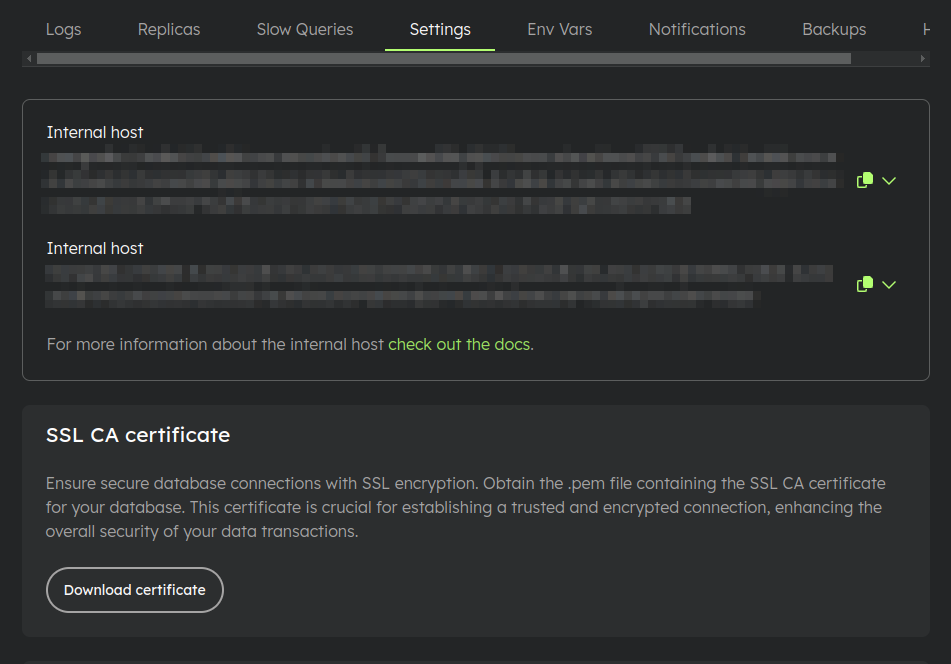
On the application environment page, select Settings → Database settings to download the database's SSL CA certificate. This certificate is essential for establishing a trusted and encrypted connection.
Backups
For databases hosted with us, we provide daily backups retained for up to 7 days by default. The default automatic deletion policy is based on that 7-day retention window; the 30 GB amount is the included backup-storage billing allowance per app environment in each region, not a shorter retention cap. Starting with July 2026 billing, backup storage above 30 GB is billed from the hourly average extra GB retained during the month. July storage overage is charged on the invoice sent in August. See Pricing details for the current included amounts and overage rates.
Database dump backups and managed volume snapshot chains both count toward the same backup storage total when both are retained for the app environment.
If you configure an environment to send backups to your own object-storage account, Quave ONE does not charge backup-storage overage for those customer-owned backup objects. Your object-storage provider bills that storage directly.
Volume snapshots: full and incremental
Volume snapshots are grouped in chains. A chain starts with a full snapshot, a copy of the whole volume, and each later recovery point is an incremental that stores only the blocks changed since the previous point. In Snapshots → Other options you choose:
- Recovery point interval: the maximum time between recovery points (every 1, 2, 4, 6, 8 or 12 hours).
- Full snapshot every: how often a new chain starts with a full snapshot (1 day by default, or 7, 15 or 30 days).
Both are saved together by Save snapshot options, and saving other snapshot options keeps the chosen period. A new period applies from the next chain; the running chain keeps the length it started with.
Choosing a period is a trade-off:
- Fewer full uploads. A longer period reads and uploads the whole volume less often, which matters for large volumes where a full snapshot can take many hours.
- Slower restores. Restoring a recovery point applies the full snapshot and every incremental up to that point: up to 168 files for hourly points with a 7-day period, and up to 720 with a 30-day period.
- Failures restart the chain. Today a failed incremental ends the chain and the next run starts a new full snapshot, so long chains are more exposed to one failure.
- Retention removes whole chains. Keep volume snapshots for (days) is how far back you can restore. Cleanup deletes a chain only after its newest recovery point is older than that, and deletes it whole, so storage can hold up to retention + the full period (for example, up to 14 days of snapshots with 7-day retention and weekly full snapshots). A chain whose full snapshot is still uploading never causes the previous complete chain to be removed, and the newest complete chain is always kept.
While Disaster Readiness manages an environment's snapshots, its interval applies; the stored full snapshot period is kept only when the stored interval is at least as frequent as the DR interval. You can change these options with the App Environment Backups API or the MCP tool update-app-env-snapshot-options.
Encryption
Each database is equipped with a unique key pair for encryption.
Download and Decryption
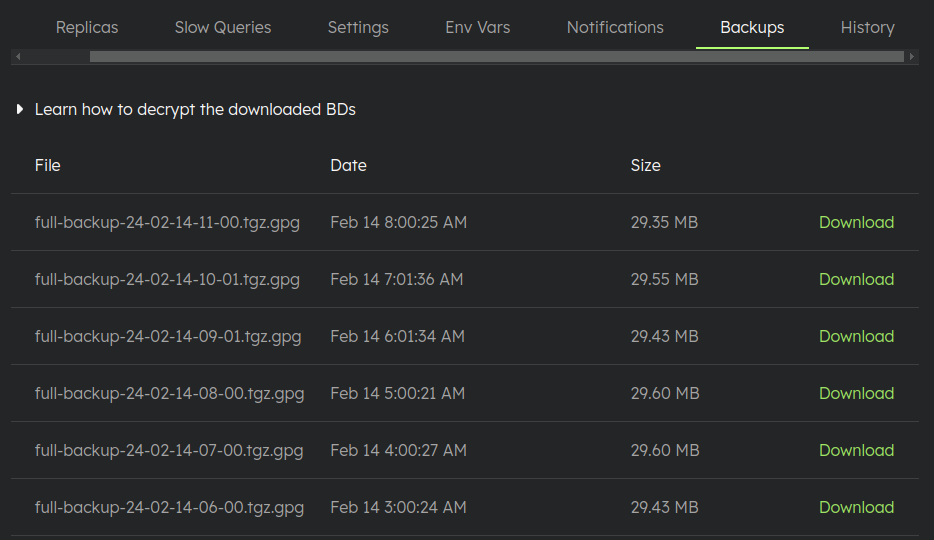
On the application environment settings page, under the Backups tab, you'll find a list of the most recent backups along with instructions for downloading and decrypting them.
You can also use the App Environment Backups API or the MCP backup tools. Downloading decryption material requires Secrets Access permission, and MCP requests must use a key with the quave:read:secrets scope.
Disk Price
For Quave ONE Direct managed databases and regular apps with a local persistent volume, each allocated zCloud includes 5 GB of disk storage. Starting with July 2026 billing, configured disk allocated above zClouds * 5 GB is billed from the hourly average extra allocated GB in the month. Shared Storage (NFS) does not use this disk allocation or disk-storage overage.
Managed database backup storage includes 30 GB per app environment in each region. Backup storage above 30 GB is billed from the hourly average extra retained GB in the month.
Check our pricing page for the current storage overage prices.
Secret revelation requires the account-level Secrets Access role; Admin alone does not grant it. Existing authentication, resource-access, MFA and API/MCP scope requirements still apply. See User Roles.