Account Credentials
The Credentials area in My Account is the single place to store sensitive material your apps and environments need at runtime — Docker registry logins, AWS ECR registry access, HTTP basic-auth users, TLS certificates and ACME wildcard configurations. Credentials are encrypted at rest, scoped to one account, and made available everywhere that account deploys to.
Why credentials live on the account
Without an account-level credentials area, every app would carry its own copy of the same Docker login, every host its own certificate file, and rotating any of them would mean editing every place it appears.
Account credentials solve that:
- One source of truth for each registry, certificate or basic-auth user.
- Pickable from selects wherever they are needed — App page, Hosts, Environment Settings.
- Automatically available in every region the account uses, so the first deploy in a new region already has what it needs.
Who can manage credentials
Creating, editing and deleting credentials requires the Manage Credentials role on the account. Other members can still pick credentials from the selects on the App, Hosts and Environment pages, but the Credentials page itself is hidden for them. See User Roles for the full list of roles.
Credential types
| Type | Used by |
|---|---|
| Container Registry | App page — to pull the runtime image at deploy time (image deploys) and base images during a Docker build. |
| Basic Auth | Environment Settings — to require an HTTP basic-auth username/password on the public ingress. |
| TLS Certificate | Hosts — to serve a custom uploaded certificate for a hostname on the ingress. |
| ACME Wildcard | Hosts — to issue wildcard certificates automatically through a DNS provider (Cloudflare, Route 53, Azure DNS, GCP, …). |
All four share the same form shell (Type, Name, Description) and only the body changes per type.
Credentials page
Open My Account → Credentials:
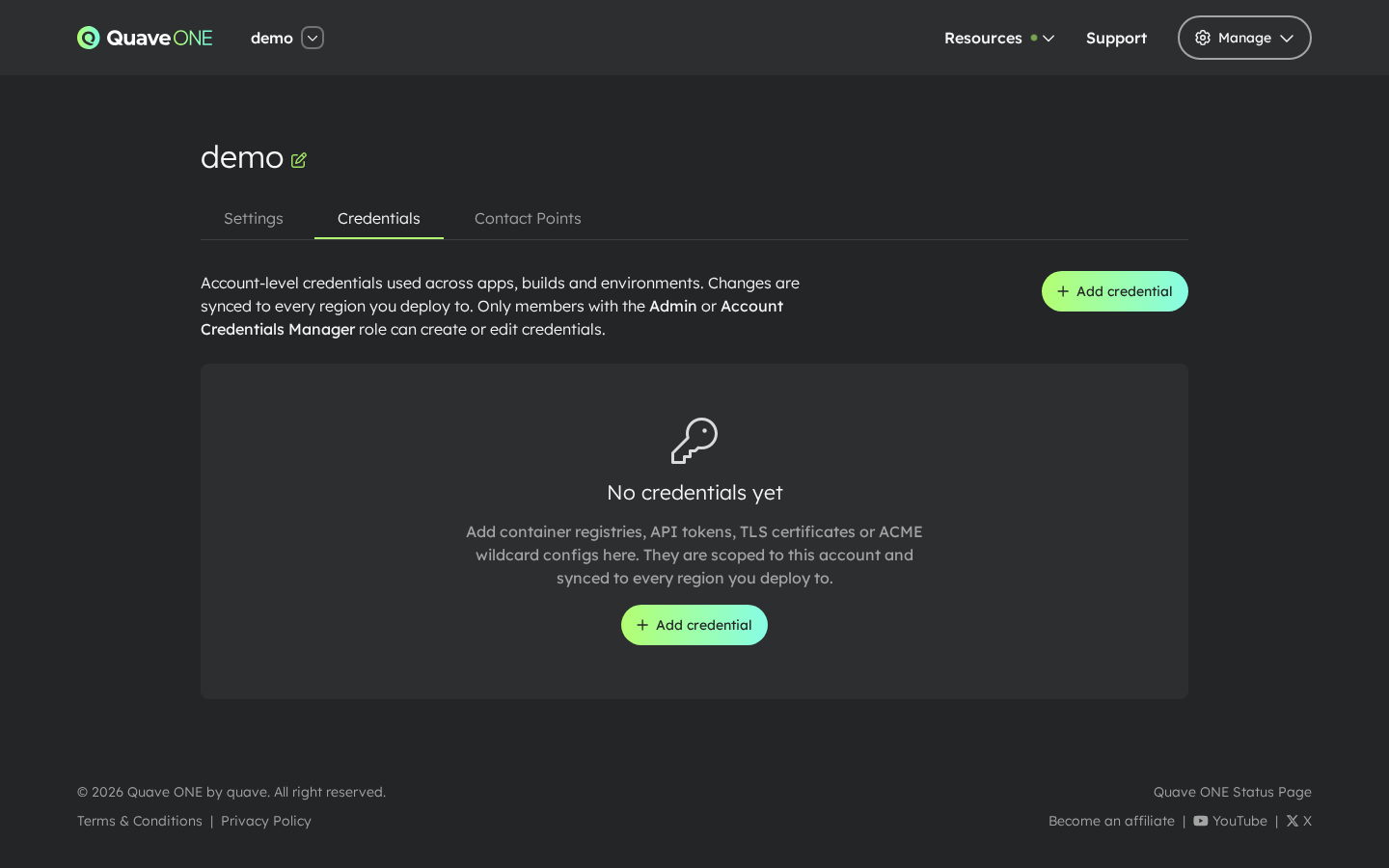
The empty state explains what the area is for. Once at least one credential exists, the page groups them by type and shows the regions each one has been pushed to.
Adding a Container Registry credential
The Container Registry form is the most common entry point.
-
Click Add credential:
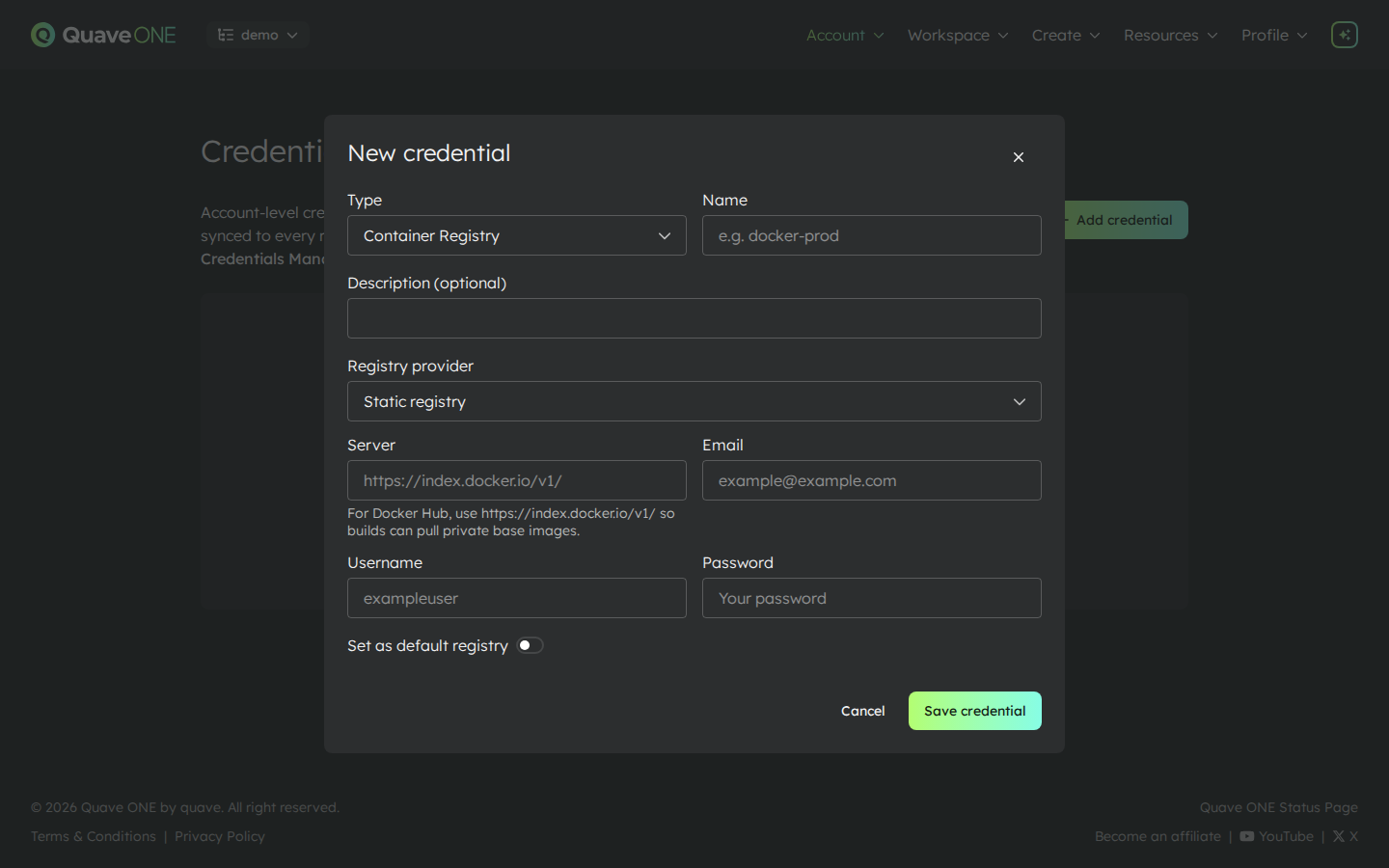
-
Pick a type (it defaults to Container Registry), give the credential a short stable Name (it shows up in selects across the app), an optional Description, and fill the registry fields:
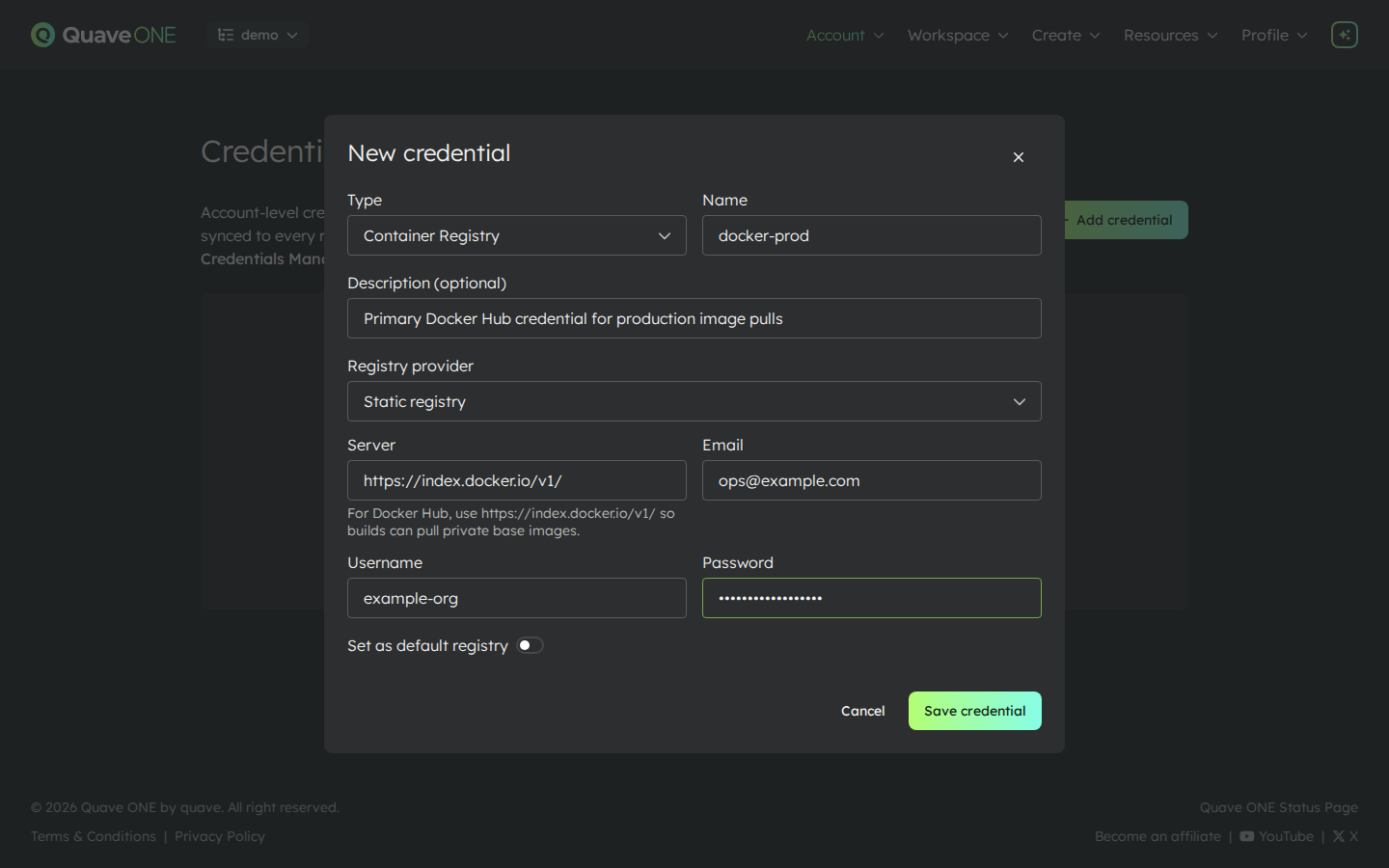
- Registry provider — choose Static registry for Docker Hub, GHCR, GCR, or internal registries with stable username/password credentials. Choose AWS ECR for private Amazon ECR registries.
- Static registry fields — server, email, username and password. The password is only shown again behind an explicit reveal action. For Docker Hub, set the server to
https://index.docker.io/v1/:docker.ioworks for runtime image pulls but not for Docker builds that pull a private base image. See Container Registry for other registries and troubleshooting. - AWS ECR fields — AWS account ID, AWS region, optional registry URL, AWS access key ID, AWS secret access key and optional AWS session token. Quave ONE stores the AWS source credentials encrypted, generates the ECR Docker auth token server-side and refreshes it every 6 hours.
- Set as default registry — promotes this credential to the account-wide default. Apps without an explicit selection use the default. The first Container Registry created on the account is auto-promoted; subsequent ones only become default if the toggle is checked.
-
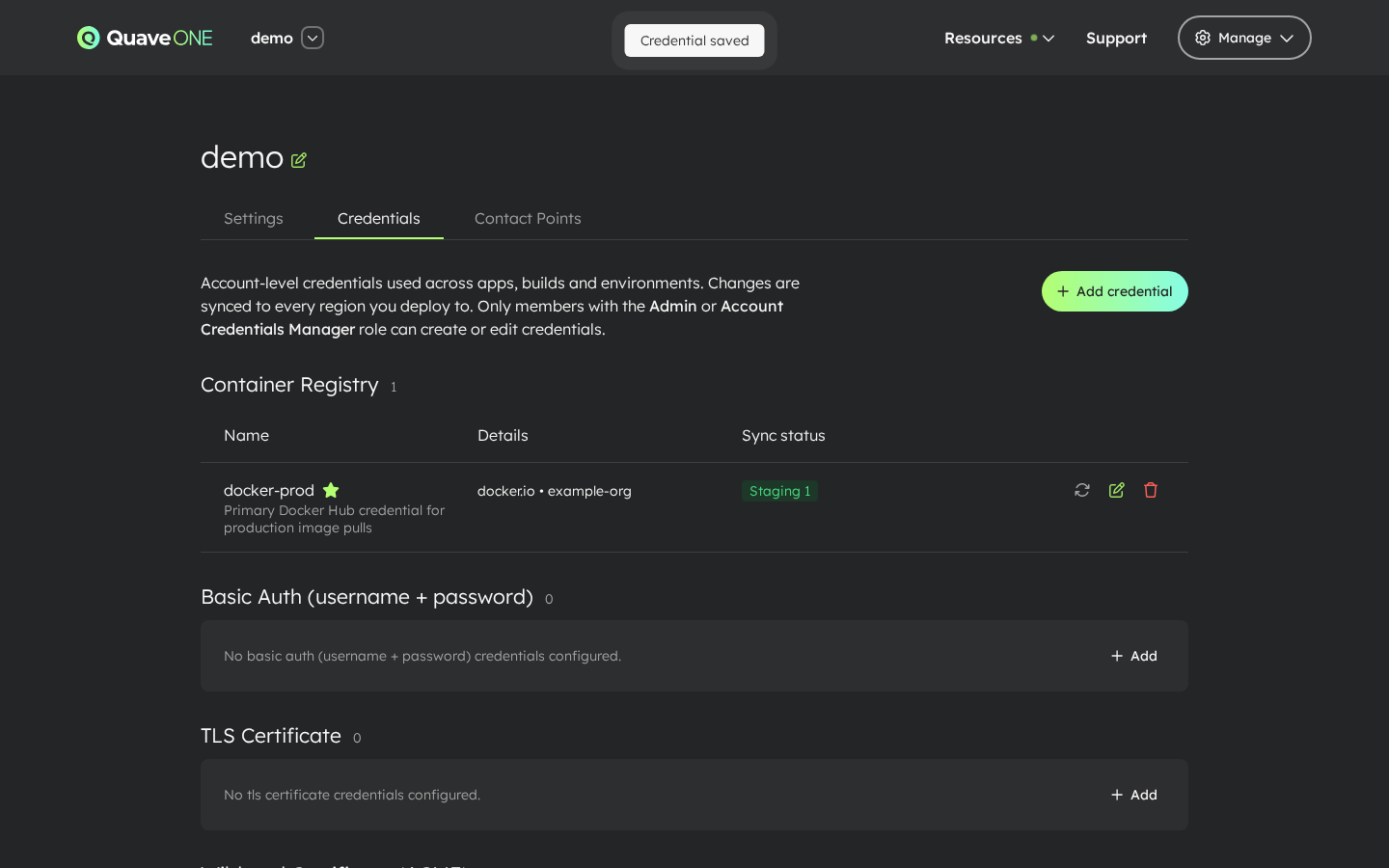
Click Save credential. The modal closes and the credential appears in the list, with a sync indicator for each region the account is using.
Adding the other types
The remaining three credential types open the same modal — only the body changes.
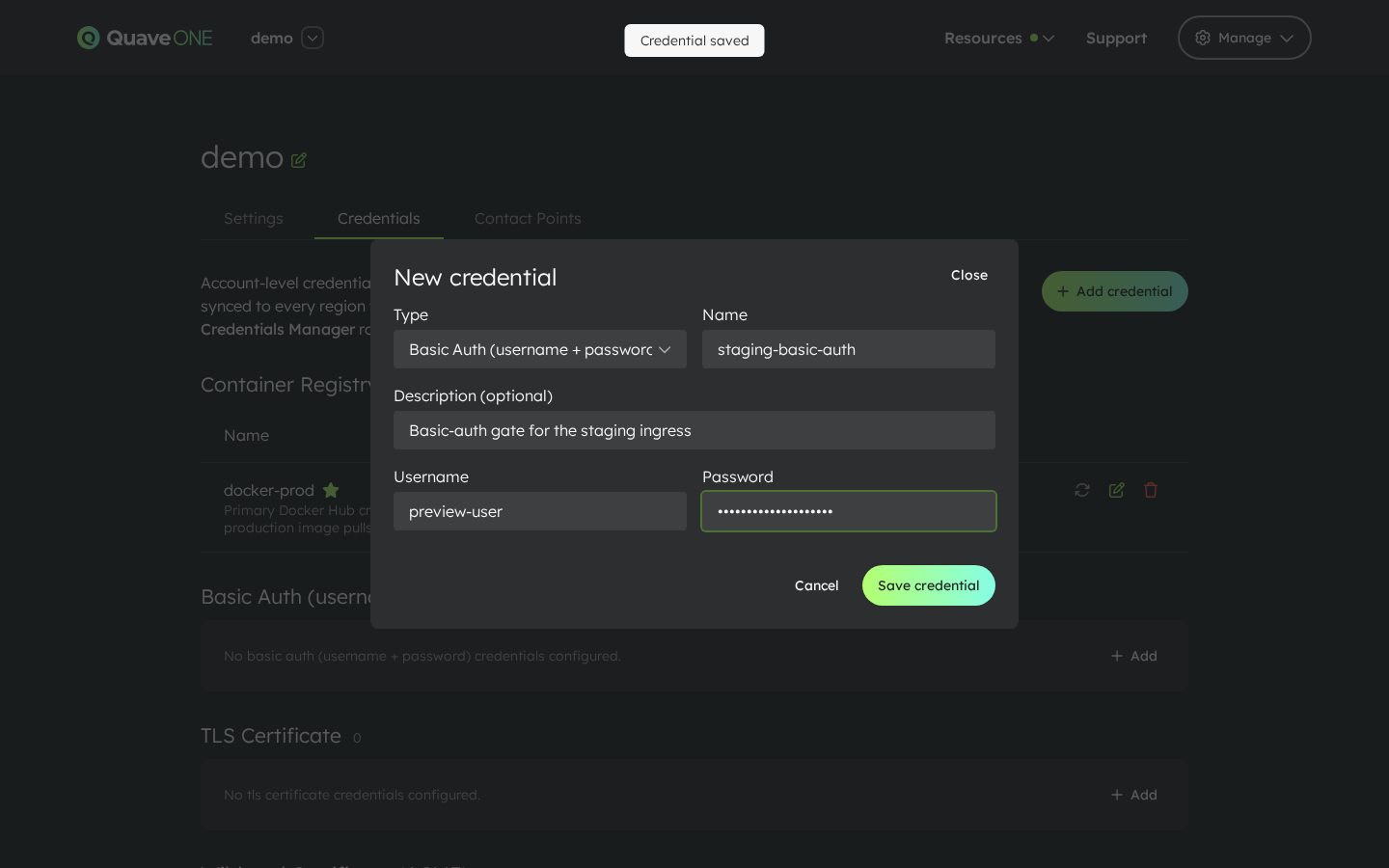
Basic Auth
A username and password for a single HTTP basic-auth user. Pick this type when you want to gate an environment's public ingress behind a username/password (see Environment Settings → Security).
TLS Certificate
Upload the certificate, the matching private key and (optionally) a CA chain. The form parses the certificate after save and shows its common name, alt names and expiration on the credential row.
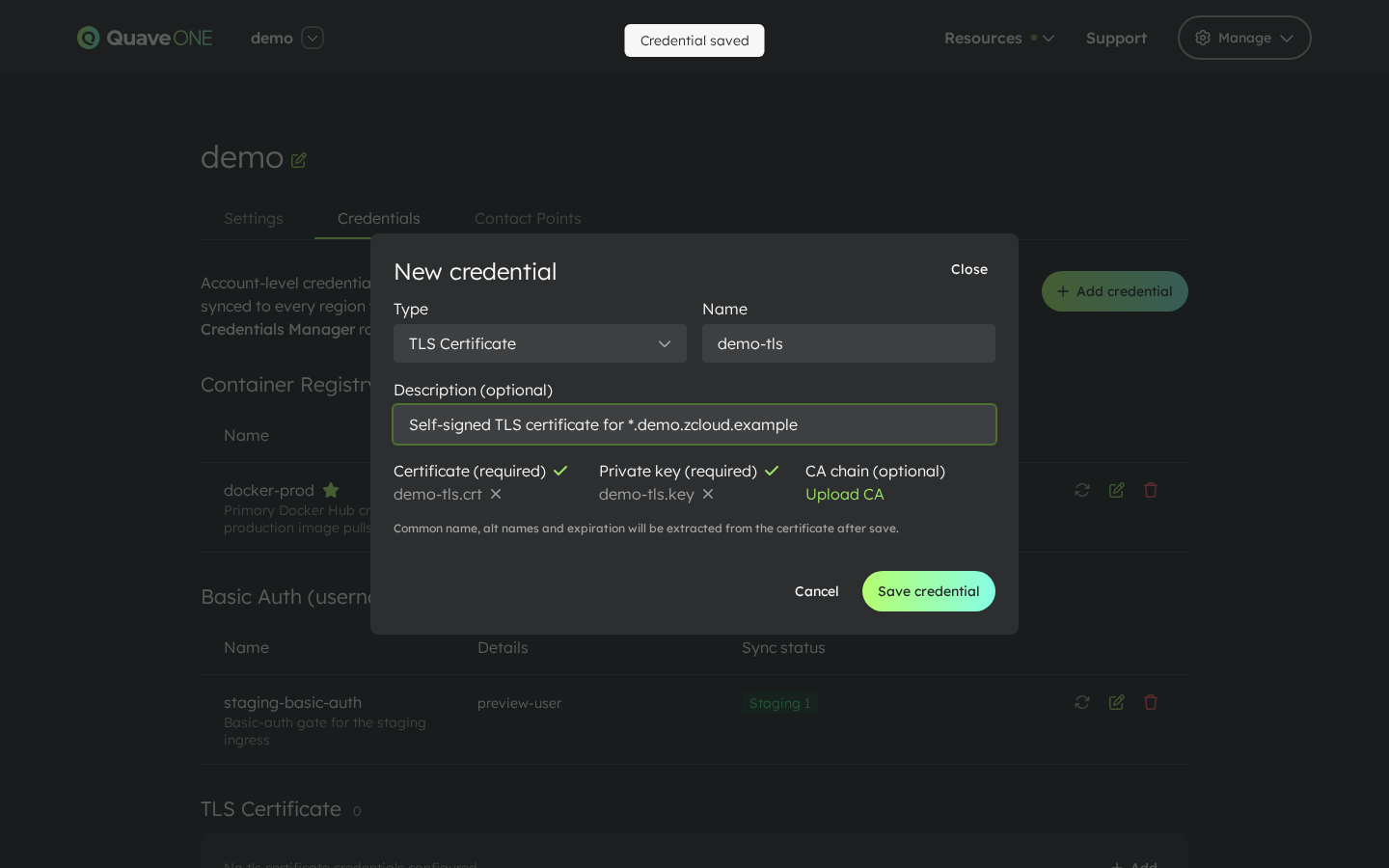
Use this type when you already own a certificate (issued by your CA) and want to serve it on the ingress for a specific host.
ACME Wildcard
Pick a DNS provider (Cloudflare, AWS Route 53, Azure DNS, GCP Cloud DNS or a custom Webhook), enter the common name and any alternative names, and paste the provider configuration as JSON. The Use template button next to the JSON box drops in a starting skeleton for the chosen provider — adjust the placeholder values and you're done.
For GCP Cloud DNS, the configuration is { "project": "...", "serviceAccountKey": "..." }. Paste the whole service account JSON key file into serviceAccountKey, either as a string or as a JSON object (it is stored as a string). The service account needs the DNS Administrator role on that project.
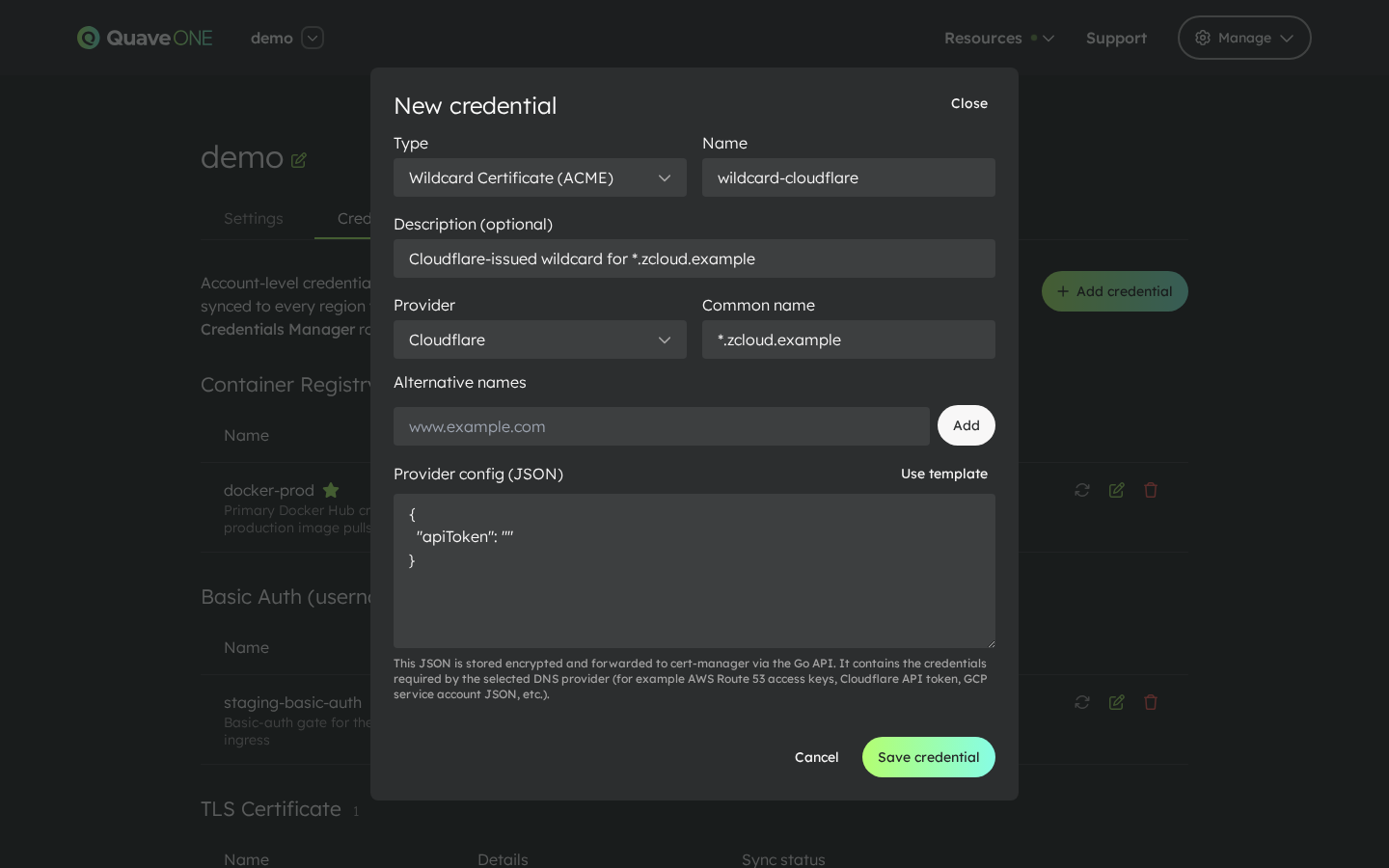
ACME Wildcard credentials let the platform issue and renew the certificate automatically. The first time the credential is used, cert-manager runs the DNS-01 challenge against the configured provider and stores the resulting certificate.
All four types together
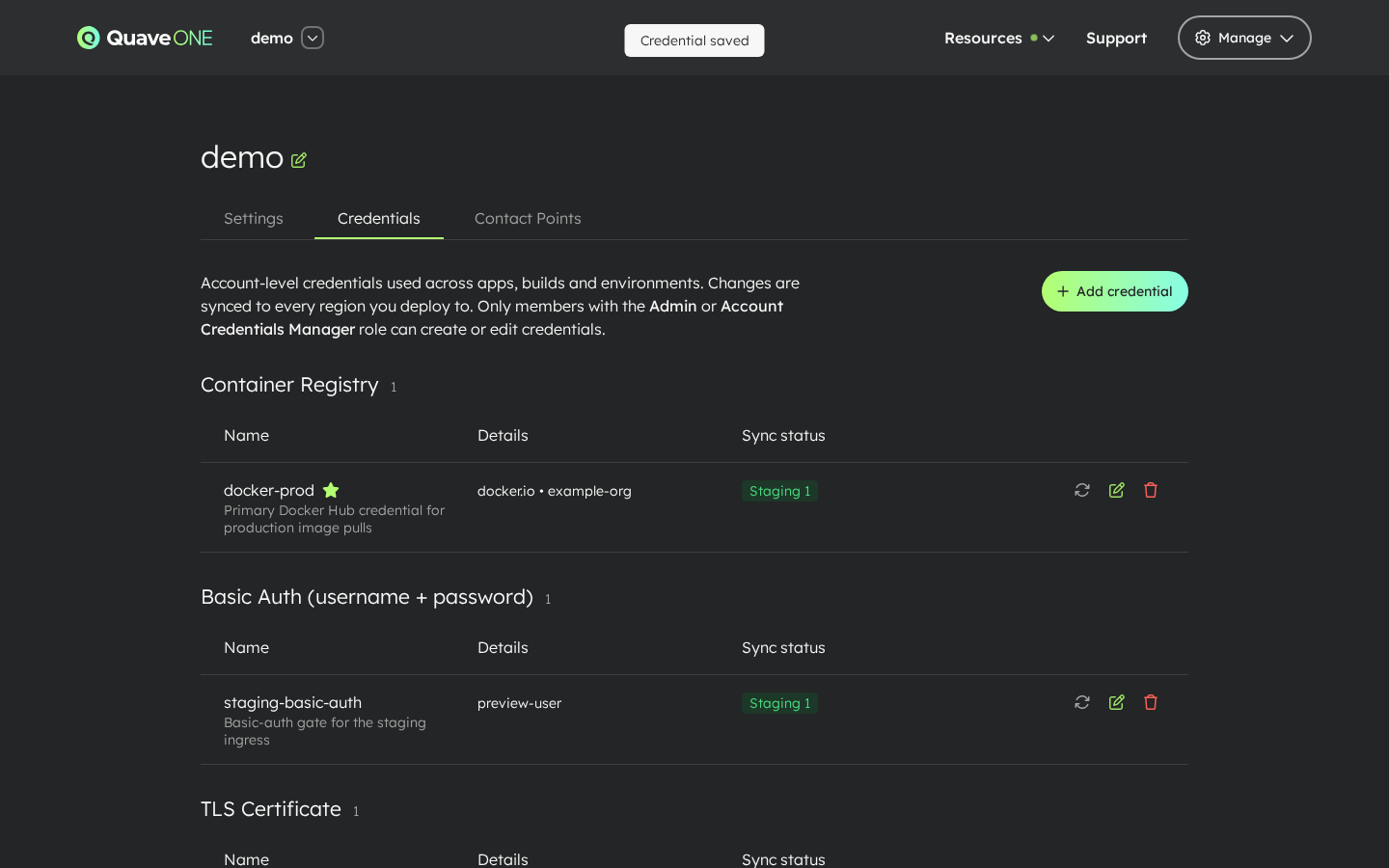
Once each of the four types has at least one credential, the Credentials page groups them by type with their per-region sync indicators side by side:
Sync status
Every credential row shows one indicator per region the account currently uses:
- Not synced yet — the credential was just created, or the account hasn't deployed to any region yet.
- Synced — the credential is in place; the tooltip shows the timestamp of the last successful sync.
- Error — last sync failed; the tooltip shows the error message.
AWS ECR registry rows can also show an ECR refresh indicator. It tells you whether Quave ONE last generated and applied the short-lived ECR token successfully, without exposing AWS keys or generated Docker auth content.
Two extra controls help when something needs nudging:
- Sync now (refresh icon on each row) — re-pushes the credential to every active region.
- For AWS ECR, Sync now also forces a fresh ECR token generation before re-pushing the pull secret.
- The first deploy of an app to a region the account has never used before automatically pushes every credential before the build/deploy starts. You normally don't need to think about this — it just works.
Where credentials are consumed
- App page — image pull select for image deploys, build pull select for Docker builds. Apps fall back to the account's default Container Registry credential if no explicit selection is made.
- Hosts — Use account certificate select on the host editor. Lists every uploaded TLS certificate (and ACME wildcard certificate, once issued) whose common name or alt names match the host being added — including single-level wildcards (
*.example.commatchesapi.example.com). - Environment Settings → Security settings — Require HTTP Basic Auth select to gate the public ingress with a username/password.
Audit
Every credential operation is recorded in the account audit log: create, update, delete, set-default and sync events. A log line is also written each time a sensitive value is revealed in the UI.
Managing credentials versus revealing secrets
Managing a credential does not grant permission to read the secrets stored inside it. Revealing an existing account credential secret or account LLM provider key requires both Manage Credentials and Secrets Access. Secrets Access alone does not grant credential management. A manager without Secrets Access can retain existing masked/encrypted values while editing metadata or replacing a value, but cannot reveal the stored value. Personal keys remain owner-scoped.
Selecting a credential for a workload, testing its connection server-side, or using it during deploy/build does not reveal its plaintext to the caller. Those operations retain their existing permissions. See User Roles for the migration and complete role matrix.